
QuickBooks Desktop gives every business the ability to control who logs in, what each person can see, and what actions each person can perform inside the company file. Login failures and permission errors in a multi-user environment are not data problems — they signal that the login credentials, the user role, the Windows folder permissions, or the network setup does not match what QuickBooks expects. Each type of failure has a specific cause and a specific fix.
Login failures in QuickBooks multi-user mode fall into two separate categories. The first category is authentication failures — a user cannot get into QuickBooks at all because the username or password is wrong, the user session was not closed properly from a previous login, or Windows does not grant the user account enough rights to run the QuickBooks program. The second category is permission errors — a user logs in successfully but cannot access specific areas, tasks, or records because their QuickBooks user role does not include access to those functions.
This article covers every major login failure and permission error that appears in QuickBooks Desktop multi-user mode — what each error means, what causes it, what it prevents the user from doing, and the exact steps that restore access. All fixes and user role information in this article are based on Intuit’s official documentation.
Table of Contents
Find Your Login or Permission Problem in 60 Seconds
Match your symptom to the correct section before reading further:
| What You See on Screen | What It Means | Go to Section |
| The attempt to log in with the user name Admin failed | Existing session not closed, or wrong password | Section 2: Admin Login Failure |
| This action requires Windows administrator permissions | Windows user account lacks admin rights | Section 3: Windows Permission Error |
| You do not have access to perform this action | QuickBooks user role blocks the requested task | Section 4: QuickBooks Role Restrictions |
| Only the QuickBooks administrator can perform this action | Task reserved exclusively for the Admin user | Section 5: Admin-Only Actions |
| User is already logged into the company file | Previous session not properly closed | Section 2: Admin Login Failure |
| Folder holding company file has no permission to access network | Windows folder permissions not set for QuickBooks service account | Section 6: Folder Permission Errors |
Tip: Match the exact wording of the error message first — QuickBooks uses precise language that identifies which layer of the login system failed.
1. How QuickBooks Desktop Controls Login and Permissions
Two Separate Permission Systems Working Together
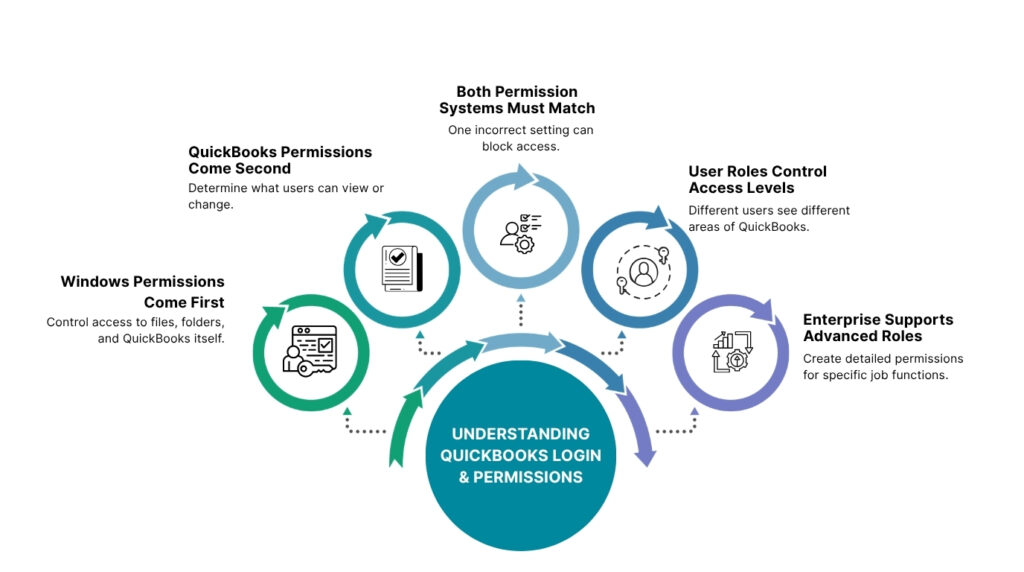
QuickBooks Desktop multi-user login depends on two completely separate permission systems running simultaneously. The first is Windows permissions — the settings that control which Windows user accounts can run the QuickBooks program, access the company file folder, and change firewall and network settings. The second is QuickBooks permissions — the user roles and access levels set up inside QuickBooks itself, which control which areas of the accounting software each person can use after they log in.
Both systems must be configured correctly for a user to log in and work without errors. A user with a correct QuickBooks password but no Windows administrator rights gets blocked from opening the program with a Windows permission error before the QuickBooks login screen even appears. A user with full Windows rights but a restricted QuickBooks user role logs in successfully but gets a QuickBooks permission error the moment they try to open a restricted area like payroll or sensitive financial reports.
Intuit documents the following as the primary causes of multi-user login failures: QuickBooks not installed on the server correctly, incorrect hosting settings, firewall or antivirus software blocking communication between computers, the database server unable to open the company file, and Windows file permissions not set up correctly. Each of those causes produces a specific error message with a specific fix.
QuickBooks User Types and What They Can Do
QuickBooks Desktop Pro and Premier have three user types. The Administrator — called Admin — has full access to every area of the company file with no restrictions. The External Accountant has access to all accounting areas and tools but cannot view sensitive employee information or payroll details. The Regular User is a standard user whose access is configured by the Admin, either granting full access to all areas or restricting access to specific modules.
QuickBooks Desktop Enterprise has a more detailed role system that goes beyond three types. Enterprise allows the Admin to create named roles — such as Finance, Payroll Manager, Payroll Processor, Inventory, and Full Access — and assign each role a precise set of access levels for every area and activity in the software. Intuit’s documentation on user roles in Enterprise allows access levels of None (no access to the area), Full (complete access to view, create, modify, delete, and print), or partial access to specific activities within an area.
2. The Attempt to Log In With the User Name Admin Failed
What This Error Means
The error message ‘The attempt to log in with the user name Admin failed’ appears on the QuickBooks login screen when the Admin login is rejected. Intuit’s official documentation on this error identifies three distinct causes: the user is already logged into the company file from a different workstation, the user logged in via remote access and did not log out from the previous session, or an electrical or network problem interrupted the previous session without closing it properly. In each case, QuickBooks still shows the user as logged in from the previous session, and a second login attempt from a new session triggers the conflict error.
This error is not always caused by a wrong password. A user who enters the correct Admin password still receives this error if QuickBooks has not released the previous session lock. The session lock is a record QuickBooks keeps to prevent two people from logging in with the same username simultaneously — because two concurrent logins with the same credentials can cause conflicting writes to the company file. The lock stays in place until the previous session is formally closed or until QuickBooks services are restarted on the host computer.
How to Fix the Admin Login Failure Error in QuickBooks?
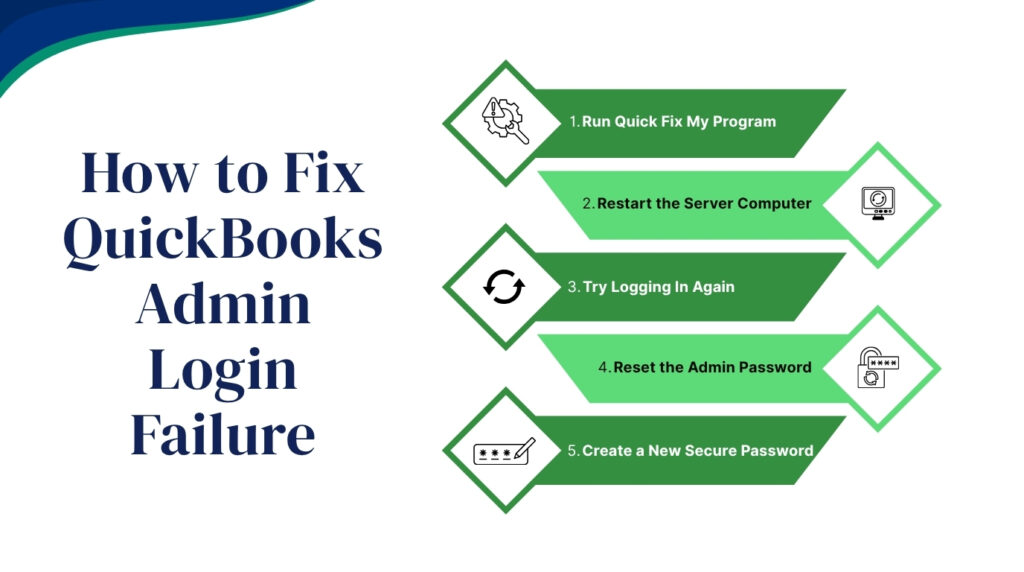
Step 1 — Run Quick Fix My Program from QuickBooks Tool Hub. Download the Tool Hub from Intuit’s official website if it is not already installed. Close QuickBooks on all computers, open the Tool Hub, go to Program Problems, and select Quick Fix My Program. This tool restarts the QuickBooks background services and clears stale session records that prevent a fresh login. After the tool finishes, open QuickBooks Desktop and attempt to log in to the company file again.
Step 2 — Restart the server computer that hosts the company file. Intuit’s documented fix for this error includes restarting the server that stores and hosts the company data file. A restart closes all active QuickBooks processes, including any orphaned session records left by an abrupt network disconnection or power interruption. After the server restarts, open QuickBooks on a workstation and log in to the company data file. Restarting the server clears the session lock that was preventing the Admin login.
Step 3 — Reset the Admin password if the password itself is the cause. On the QuickBooks login screen, select the reset button and answer the challenge questions set up during account creation. Intuit also provides the Automated Password Reset Tool, available through the Intuit Password Reset page, which resets the QuickBooks Admin password for any QuickBooks Desktop version. To use the tool, select your QuickBooks version on the Intuit Password Reset page, enter the license number, name, email address, phone number, and ZIP code from the account, and follow the prompts to create a new Admin password.
QuickBooks Admin Login Failure Diagnosis and Fix Summary
| Specific Error Wording | Root Cause | Fix |
| User ID Admin is already logged into the company file | Previous session not closed on another workstation | Restart the server; run Quick Fix My Program in Tool Hub |
| This user is already logged in — try a different username | Same username open on another computer or via remote access | Close the open remote session; restart QuickBooks services on host |
| Attempt to log in failed — correct password, no session conflict | Company file data damage blocking the login process | Run Verify and Rebuild Data from the File > Utilities menu |
| Admin password not accepted and challenge questions forgotten | Password lost with no recovery answers available | Use the Intuit Automated Password Reset Tool at the Intuit Password Reset page |
3. This Action Requires Windows Administrator Permissions
What This QuickBooks Error Means and Why It Blocks QuickBooks?
The error message ‘This action requires Windows administrator permissions’ appears when the Windows user account currently logged in on the computer does not have administrator-level rights. Windows administrator rights are the elevated access level that allows a user to install programs, change firewall settings, and modify files in protected directories. QuickBooks Desktop requires these rights specifically on the host computer because the QuickBooksDBXX service and the Database Server Manager application both write to protected system areas during normal operation.
Intuit’s documentation on this error confirms it means the current user account lacks the necessary privileges. The error appears at the QuickBooks login stage — before the user even reaches the company file — which means it is a Windows-level block, not a QuickBooks account block. A user who has a valid QuickBooks password is completely unable to proceed past this error until the Windows account is granted administrator rights on that computer.
This error is especially common on shared computers in small offices where employees log in under standard Windows accounts to limit what software they can install. Standard Windows accounts are correct for general computer use, but QuickBooks Desktop specifically requires administrator rights on the host computer. Intuit’s setup documentation requires administrator rights on the server computer when hosting multi-user access.
How to Fix the Windows Administrator Permission Error in QuickBooks?
Grant administrator rights to the Windows user account that needs to run QuickBooks on the host computer. Open the Windows Start menu and go to Control Panel. Select User Accounts, then find the user account that receives the error. Click the account name, select Change the account type, and choose Administrator. Click Change Account Type to save. The user must log out of Windows and log back in for the change to take effect. After the re-login, open QuickBooks and confirm the error no longer appears.
A second fix for environments where giving users full Windows administrator rights is not acceptable for security reasons is to run QuickBooks as an administrator without changing the account type. Right-click the QuickBooks Desktop icon on the Windows desktop, select Run as administrator, and click Yes on the User Account Control prompt. Running QuickBooks as an administrator gives the program the elevated rights it needs for that session only, without permanently changing the Windows user account’s permission level.
For server environments where multiple users log in via Remote Desktop Protocol — a technology that lets users access a computer remotely over the network — Intuit documents that the QuickBooks shortcut path must point to the program’s local installation path on the server. A shortcut that uses a network path instead of a local path causes QuickBooks to request administrator credentials every time it opens, because Windows treats network-path shortcuts differently from local-path shortcuts when checking permissions.
4. QuickBooks Role Restrictions: You Do Not Have Access to This Area
What QuickBooks Role Restrictions Mean?
A QuickBooks permission error that appears after a user successfully logs in — such as ‘You do not have access to perform this action’ or ‘You are not authorized to access this area’ — is a QuickBooks user role restriction, not a Windows problem. The user’s Windows account and QuickBooks password are both correct. The user is inside QuickBooks. The error appears because the QuickBooks Admin has set the user’s role to exclude the specific area they are trying to open.
QuickBooks Pro and Premier let the Admin configure each regular user’s access area by area during setup. The Admin can choose either All areas of QuickBooks, giving the user full access to everything, or Selected areas of QuickBooks, which lets the Admin grant or deny access to specific modules — Sales, Purchases, Inventory, Time Tracking, Payroll, Sensitive Accounting Activities, and Sensitive Financial Reports. A user whose role says No Access to the Payroll module receives a permission error every time they try to open anything related to payroll, regardless of how the rest of their access is configured.
How to Check and Update a User’s Access in QuickBooks Pro and Premier?
Open QuickBooks on the host computer as the Admin user. Go to the Company menu, select Set Up Users and Passwords, then select Set Up Users. The list shows every user in the company file. Click the user whose access needs to be reviewed and select Edit User. Work through the access wizard screen by screen. Each screen covers a specific area — Sales and Accounts Receivable, Purchases and Accounts Payable, Inventory, Time Tracking, Payroll, Sensitive Accounting Activities, and Sensitive Financial Reports. Change the access setting for the area the user needs, select Next through all remaining screens, and click Finish.
For QuickBooks Desktop Enterprise, the role system is more detailed. Go to the Company menu, select Users, then Set Up Users and Roles. The Role List tab shows every role in the company file. Click the role assigned to the affected user and select Edit. The edit screen shows every area and activity in QuickBooks with an access level of None, Full, or a partial combination. Change the access level for the specific area the user reported as blocked, click OK, and the change takes effect immediately for every user assigned to that role.
After changing a user’s role or access level, the affected user must close and reopen QuickBooks for the new permissions to load. A user who updates access while the affected user is still logged in will not see the change reflected until the next login. Ask the user to save any open work, go to File, and select Close Company. Then reopen the company file and log in again. The new access level is active from that point forward.
QuickBooks User Access Level Reference
| User Type / Role | What They Can Access | What They Cannot Access |
| Administrator (Admin) | Full access to every area and task in the company file | No restrictions — Admin has unrestricted access to all functions |
| External Accountant | All accounting areas, journal entries, chart of accounts, tax tools | Cannot view employee payroll details or sensitive payroll records |
| Regular User — Full Access | All areas the Admin grants access to during user setup | Any area where the Admin selected No Access during setup |
| Regular User — Limited | Only the specific modules granted by the Admin | All other modules; payroll setup always restricted to Admin only |
| Enterprise Custom Role | Exact areas and activities defined in the role configuration | All areas and activities not explicitly granted in the role |
5. Only the QuickBooks Administrator Can Perform This Action
What Tasks Are Reserved for the Admin Only?
Certain tasks in QuickBooks Desktop are restricted to the Admin user — or the External Accountant — regardless of how the regular user’s access is configured. Intuit’s user restriction documentation states that even a regular user with Full Access cannot perform the Payroll Setup. Attempting to open the Payroll Setup produces the message: ‘Only the QuickBooks administrator or an External Accountant can perform this action. You must reopen the company file and login as the Admin or External Accountant to do this.’
This restriction on Payroll Setup is designed intentionally by Intuit. Payroll Setup controls pay rates, deductions, tax withholding settings, and direct deposit configurations — all information that carries legal and financial liability. Restricting it to the Admin and External Accountant ensures that no regular user can change payroll parameters, even accidentally, without the explicit involvement of whoever holds the Admin credentials for the company file.
Other tasks that require Admin login include changing the company file closing date, setting the closing date password, editing the chart of accounts structure, and managing user accounts and roles. These tasks are administrative in nature — they change the structure or access configuration of the company file rather than entering day-to-day transactions — and Intuit restricts them to the Admin to maintain data integrity and accountability.
How to Handle Admin-Only Task Errors in QuickBooks?
The only resolution for an ‘Only the QuickBooks administrator can perform this action’ error is to log in as the Admin user and perform the task from the Admin login. A regular user cannot be granted permission to perform Admin-only tasks — these restrictions are hardcoded by Intuit and cannot be changed through the user role configuration screen. Ask the business owner or designated QuickBooks Admin to log in and complete the restricted task.
For businesses where the Admin account holder is not always available, Intuit recommends creating an External Accountant user for the bookkeeper or accountant who handles payroll and sensitive accounting tasks. The External Accountant role has access to payroll tools and sensitive accounting activities that regular users cannot reach, which reduces the number of times the business owner must personally log in to complete accounting work.
6. Folder Permission Errors: The Company File Folder Has No Network Access
What This Error Means in QuickBooks?
The error message that the folder holding the company files has no permission to access the network appears when the Windows folder that stores the company file is not configured to allow the QuickBooks service account to share it across the network. This is a Windows-level permission problem, not a QuickBooks user role problem. The company file exists and is accessible to whoever is physically on the host computer, but no workstation on the network can reach it because the folder sharing settings block network access.
Intuit’s documentation on multi-user login issues lists incorrect Windows file permissions as one of the five primary causes of login failures in QuickBooks Desktop multi-user mode. The service account that needs folder access is named QBDataServiceUserXX — where XX is a version number that changes with each QuickBooks year. This account is created automatically during QuickBooks installation and is separate from any regular Windows user account. It acts behind the scenes as the account that runs the Database Server Manager and manages access to the company file over the network.
How to Fix Folder Permission Errors in QuickBooks?
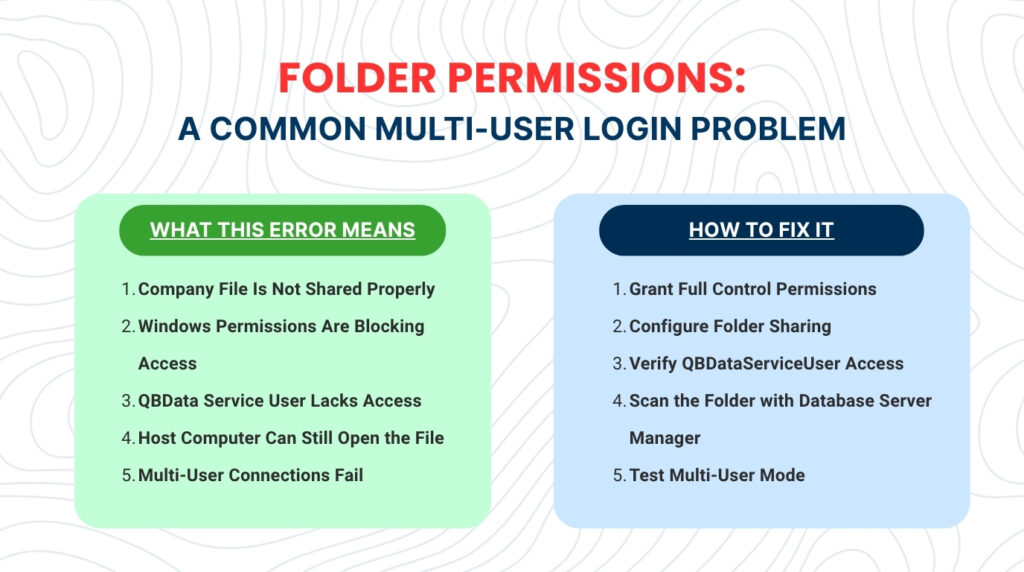
Open Windows File Explorer on the host computer and navigate to the folder containing the company file. Right-click the folder and select Properties. Go to the Security tab and click Edit. Click Add, type the name QBDataServiceUserXX — replacing XX with the number for your QuickBooks version — and click OK. Select the account in the list, check Full Control under Allow, and click Apply, then OK. Intuit’s folder permission guide requires Full Control for the QBDataServiceUserXX account on both the Security tab and the Sharing tab of the folder properties.
Also configure the Sharing tab on the same folder. In the folder Properties window, go to the Sharing tab and click Share. In the File Sharing dialog that opens, add QBDataServiceUserXX and set the Permission Level to Read/Write. Click Share to save the setting. The folder must appear as shared in the Sharing tab with Read/Write access for the service account — without this, workstations can see the host computer on the network but cannot reach the company file folder.
After setting both the Security and Sharing permissions, open QuickBooks Database Server Manager on the host computer and run a scan of the company file folder. Intuit’s documentation confirms that the Database Server Manager scan repairs firewall permissions automatically and verifies that the folder is accessible over the network. After the scan completes successfully, test the connection from each workstation by opening QuickBooks and attempting to switch to multi-user mode.
Folder Permission Checklist by QuickBooks Version
| QuickBooks Version | Service Account Name | Permission Required on Both Tabs |
| QuickBooks Desktop 2024 | QBDataServiceUser34 | Full Control (Security) + Read/Write (Sharing) |
| QuickBooks Desktop 2023 | QBDataServiceUser33 | Full Control (Security) + Read/Write (Sharing) |
| QuickBooks Desktop 2022 | QBDataServiceUser32 | Full Control (Security) + Read/Write (Sharing) |
| QuickBooks Desktop 2021 | QBDataServiceUser31 | Full Control (Security) + Read/Write (Sharing) |
| After any version upgrade | New QBDataServiceUserXX account | Must be added manually — not inherited from previous version |
7. Antivirus and Security Software Blocking QuickBooks Logins
How Security Software Interferes with QuickBooks Multi-User Login?
Antivirus and security software products protect computers by monitoring every program that runs and blocking programs that match threat patterns. QuickBooks Database Server Manager and its associated service files — QBDBMgrN.exe, QBCFMonitorService.exe, and QBW32.exe — communicate across the network in ways that some security programs flag as suspicious. A security program that blocks one of these files from running or communicating prevents the user login process from completing, producing errors that look like password problems or permission issues but are actually caused by the security software.
Intuit’s documentation on multi-user login issues specifically lists firewall or antivirus software blocking communication between user computers as a primary cause of login failures. The block happens at the network communication level — the user enters the correct QuickBooks username and password, but the login request from the workstation cannot reach the host computer because the security software on either computer is blocking the traffic. The user sees a failed login rather than a firewall error because QuickBooks interprets the blocked connection as a failed authentication attempt.
How to Identify and Fix Security Software Blocks in QuickBooks?
Open the antivirus or security software on the host computer and check its activity log for any entries that show a block on QuickBooksDBMgrN.exe, QBCFMonitorService.exe, or QBW32.exe. These three files are the main QuickBooks executables that communicate over the network. Add each of these files to the security software’s exclusion list — the setting that tells the software to allow specific programs to run and communicate without inspection. The exclusion list location differs by software brand; look for a section called Exceptions, Exclusions, or Trusted Applications.
Also check the security software on each workstation, not only on the host computer. A workstation’s security software can block QuickBooks from sending the login request to the host, producing the same failed login result. Add the same three QuickBooks executable files to the exclusion list on every workstation’s security software as well. Intuit also recommends ensuring that Windows Defender — the built-in Windows security program — is configured to allow QuickBooks through its firewall, in addition to any third-party security software installed on the same computer.
8. Prevention: Keep Login and Permissions Working Through Business Changes
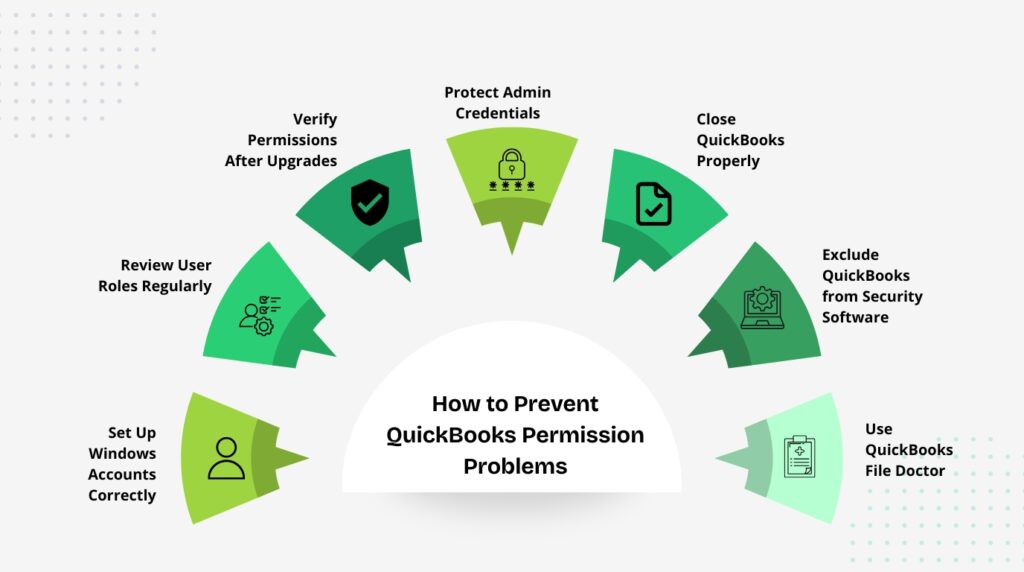
Most QuickBooks login failures and permission errors in multi-user environments are predictable. They follow events like staff changes, QuickBooks version upgrades, Windows updates, and changes to the host computer. The steps below prevent each category of login problem before it disrupts work during business hours.
- Assign the correct Windows account type before adding a new user to QuickBooks: Every person who will run QuickBooks on the host computer needs a Windows administrator account on that specific computer. Set the account type before installing or opening QuickBooks for the first time under that account.
- Review and update QuickBooks user roles whenever a staff member’s job responsibilities change: A promotion, a department transfer, or a change in duties often requires a change to the QuickBooks user role. Go to Company, Set Up Users and Passwords, and update the role before the employee needs access to the new area.
- Update folder permissions immediately after every QuickBooks version upgrade: Each new QuickBooks version creates a new QBDataServiceUserXX account that does not inherit the folder permissions from the previous version’s account. Add the new account to the company file folder’s Security and Sharing tabs with Full Control and Read/Write access before any workstation tries to connect.
- Set a strong Admin password and store it in a secure location: The Admin password controls full access to the company file. A lost Admin password requires the Intuit Automated Password Reset Tool to recover, which requires the license number and account registration information. Store the Admin password and license number in a secure, retrievable location — such as a password manager — so recovery is possible without calling Intuit support.
- Always log out of QuickBooks using File then Close Company before shutting down or leaving: A session closed abruptly by shutting down the computer or closing the window without exiting QuickBooks leaves a stale session record. That record triggers the ‘user is already logged in’ error the next time someone tries to log in with the same username.
- Add QuickBooks program files to the exclusion list of all security software on every computer: Add QBDBMgrN.exe, QBCFMonitorService.exe, and QBW32.exe to the exclusion list of every antivirus or security program on both the host computer and all workstations. This prevents security software from blocking the network communication that QuickBooks needs to authenticate users.
- Run QuickBooks File Doctor from Tool Hub after any login error that is not immediately explainable: Download QuickBooks Tool Hub from Intuit’s official website and run QuickBooks File Doctor from the Network Issues tab. The tool checks folder permissions, service status, and firewall configuration — the three most common causes of unexplained multi-user login failures — and repairs each one it finds automatically.
Conclusion
QuickBooks Desktop multi-user login failures and permission errors each point to a specific, identifiable cause. An ‘Admin failed’ error points to a stale session or a lost password. A Windows administrator permission error points to an underprivileged Windows account. A QuickBooks role restriction error points to a user role that was not configured for the area the person needs. A folder permission error points to the QBDataServiceUserXX service account missing from the company file folder’s permissions settings.
None of these problems require advanced technical skills to fix. Intuit’s Quick Fix My Program tool in the Tool Hub resolves stale session errors automatically. The Automated Password Reset Tool on Intuit’s website recovers a lost Admin password in minutes. The user role configuration screen in QuickBooks walks through every access area one by one. The folder permissions fix requires four clicks in the Windows Security tab. Each problem has a direct, documented fix that a business owner or office manager can apply without outside technical help.
The most reliable protection against recurring login and permission problems is a consistent maintenance routine: update folder permissions after every QuickBooks upgrade, review user roles after any staff change, keep a secure record of the Admin password and license number, and add QuickBooks program files to every security software exclusion list. These habits eliminate the conditions that produce login failures and keep every team member connected to the company file during normal business operations.
Frequently Asked Questions
Q1. A user enters the correct password but gets the Admin failed error every morning — what causes this?
This pattern points to a session that does not close cleanly at the end of each workday. The user is either closing QuickBooks by shutting down the computer instead of using File then Close Company, or a network interruption is ending the session abruptly without releasing the session lock. Instruct the user to always go to File, select Close Company, and then exit QuickBooks before shutting down. Also set the QuickBooksDBXX and QBCFMonitorService services on the host computer to Restart the Service on failure, so a restart clears any leftover session locks automatically.
Q2. A new employee needs access to payroll — can their regular user account be given payroll access?
Yes, for payroll entry tasks, but not for Payroll Setup. In QuickBooks Pro and Premier, go to Company, Set Up Users and Passwords, Set Up Users, find the user, click Edit, and work through the wizard until the Payroll screen. Change the setting to Full Access and save. The user can then enter payroll transactions and run payroll reports. Payroll Setup — which controls pay rates, deductions, and tax withholding settings — is permanently restricted to the Admin and External Accountant user types and cannot be opened by a regular user regardless of their access level.
Q3. How do I check what permissions a specific user currently has in QuickBooks?
Open QuickBooks as the Admin, go to the Company menu, select Set Up Users and Passwords, then Set Up Users for Pro and Premier. Click the user’s name and select View User to see a summary of their current access restrictions. In QuickBooks Enterprise, go to Company, Users, Set Up Users and Roles, select the Role List tab, click the role assigned to the user, and select View Permissions. The Permissions Access by Roles report in Enterprise also generates a complete list of every role’s access levels across all areas and activities.
Q4. After upgrading QuickBooks from 2023 to 2024, workstations cannot log in — what happened?
The upgrade created a new service account named QBDataServiceUser34, but the company file folder still only has permissions for the previous version’s account, QBDataServiceUser33. The new account cannot access the folder, so the Database Server Manager cannot share the file, and all workstation login attempts fail. Open the company file folder Properties on the host computer, go to the Security tab, add QBDataServiceUser34 with Full Control, go to the Sharing tab, add QBDataServiceUser34 with Read/Write access, and run a Database Server Manager scan. Workstation login access returns immediately after the scan.
Q5. Can the QuickBooks Admin password be recovered if both the password and challenge question answers are forgotten?
Yes. Intuit provides the Automated Password Reset Tool specifically for this situation. Go to the Intuit Password Reset page, select your QuickBooks Desktop version, and enter the required account verification information — the QuickBooks license number, the name on the account, the email address, phone number, and ZIP code registered in the Customer Account Management Portal (CAMPS). Intuit verifies the information and sends a reset code to the registered email address. Use the code to create a new Admin password. If the account information in CAMPS is no longer current, contact Intuit support to verify the account through alternative identification.

Anusmita is a seasoned content writer who brings perspective to words. As a writer, she enriches her work with a journalistic aptitude, utilising her training in Mass Communication and Journalism. She loves to travel and explore, which imparts a greater sense of understanding, maturity, and experience that are reflected in her content.
Beyond her professional work, Anusmita enjoys painting, singing, dancing, and spending time planting. She is also a self-proclaimed foodie who loves exploring different cuisines, an interest that further adds to her curiosity and perspective as a writer.
Leave a Reply