
A workstation that opens QuickBooks but cannot reach the company file is one of the most disruptive problems in a multi-user QuickBooks Desktop setup. The company file is stored on a server computer — a designated computer on the office network that holds the shared file — and every other computer in the office (called a workstation) needs to connect to it through the network to open and use it. When that connection breaks, the workstation user gets an error and cannot work.
The connection between a workstation and the company file depends on four things working together at the same time: the network itself, a background service called the QuickBooks Database Server Manager running on the server, a network configuration file called the .ND file, and the Windows Firewall allowing QuickBooks traffic through. A failure in any one of these four layers produces a connection error on the workstation, even when QuickBooks appears to be installed and running correctly on that computer.
This article explains what each layer does, how to identify which one is broken, and how to fix it step by step. Every fix is sourced from Intuit’s official QuickBooks Desktop support documentation. The article also covers common errors that appear with this problem — including H202, H505, and the “cannot communicate with the company file due to a firewall” message — and explains exactly what each error means and how to resolve it.
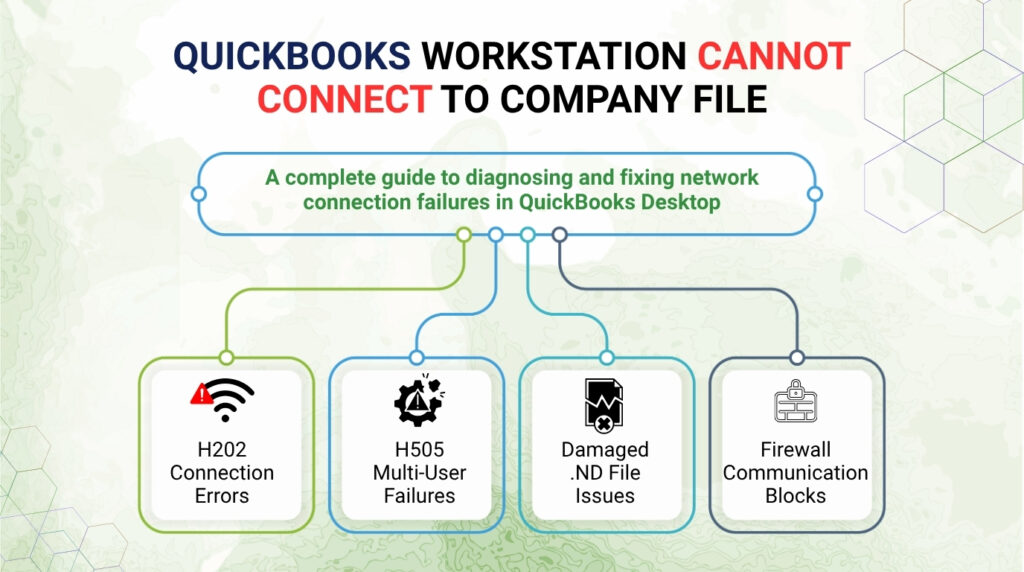
Table of Contents
How a QuickBooks Desktop Network Connection Actually Works?
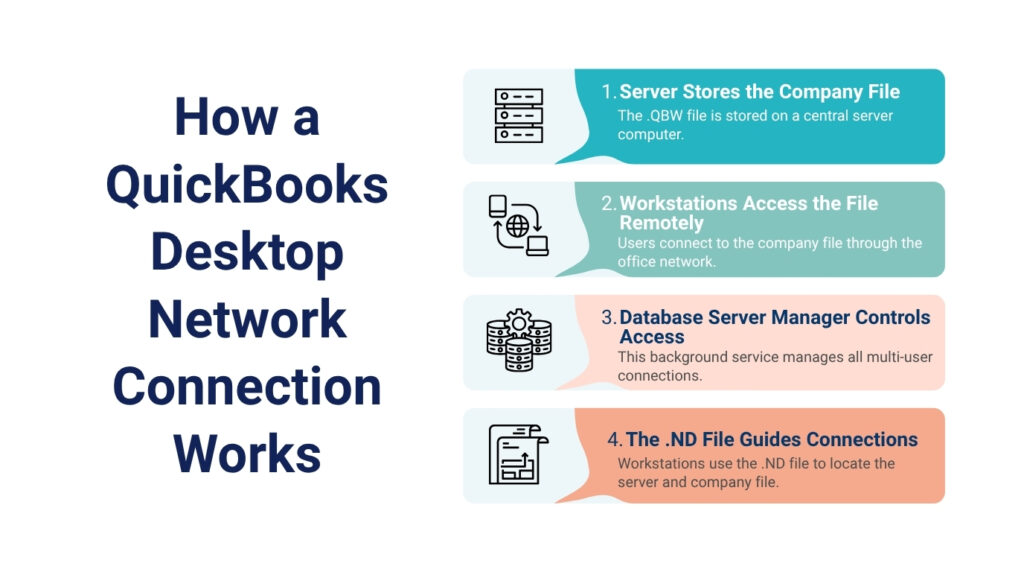
In a multi-user QuickBooks Desktop setup, only one computer stores the company file. That computer is called the server. All other computers in the office are workstations. The workstations do not store the company file — they access it over the office network from the server. The server must have QuickBooks Database Server Manager installed and running at all times for workstations to connect.
QuickBooks Database Server Manager is a background program that Intuit built specifically to manage multi-user file access. It runs as a Windows service — meaning it starts automatically when the server turns on, stays running in the background without any visible window, and handles all the connection requests from workstations. Without it running, no workstation can open the company file, regardless of network speed or QuickBooks version.
When the Database Server Manager scans the folder where the company file is stored, it creates a small configuration file with the extension .ND (which stands for Network Data). According to Intuit’s official documentation, the .ND file stores the information QuickBooks needs to communicate with the server, primarily the server’s IP address and the port number used for the connection. Every workstation reads this .ND file when connecting to the company file. A damaged or missing .ND file means the workstation cannot locate the server, even if the network connection is working perfectly.
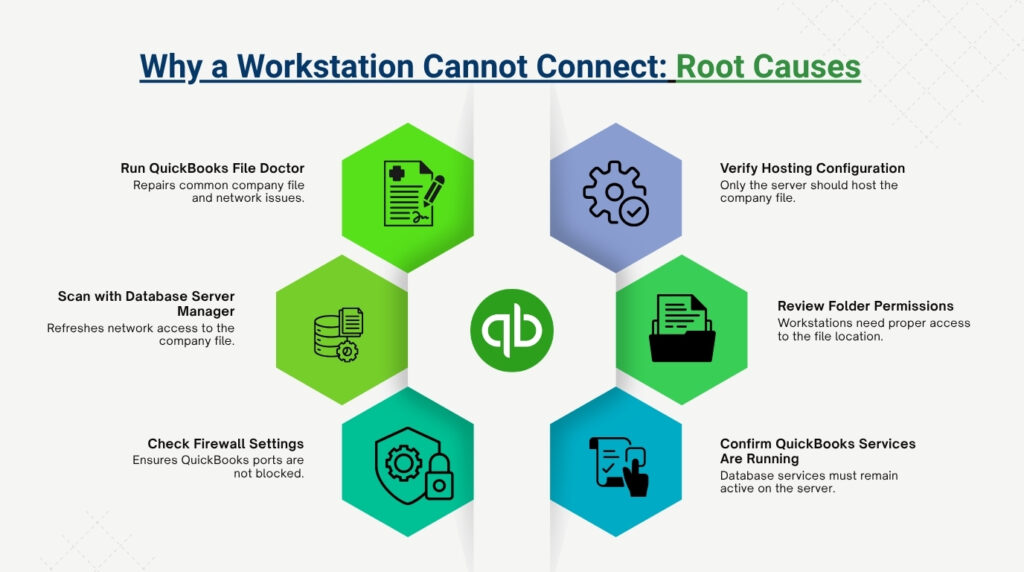
Why a Workstation Cannot Connect: Root Causes at a Glance
| Root Cause | What It Breaks | Primary Fix |
| QuickBooks Database Server Manager not running on server | Workstations cannot locate or access the company file | Restart the service via QuickBooks Tool Hub > Network Issues |
| Damaged or missing .ND file in company file folder | Workstation cannot read server IP/port needed to connect | Run Database Server Manager scan to recreate .ND file |
| Windows Firewall blocking QuickBooks ports | Network traffic from workstation is stopped before reaching server | Run QuickBooks File Doctor or manually add firewall exceptions |
| Hosting turned on at a workstation instead of only the server | Multiple computers try to host simultaneously, causing conflict | Turn off multi-user hosting on all workstations |
| Company file folder has read-only permissions | QuickBooks service account cannot write to file; connection refused | Set folder to Full Control for QBDataServiceUser account |
| Outdated QuickBooks version on server or workstation | Version mismatch prevents proper multi-user communication | Update all QuickBooks installations to the same release |
Step 1: Run QuickBooks File Doctor — The First Tool to Try
QuickBooks File Doctor is a free tool from Intuit that diagnoses and repairs both company file problems and network connection problems in one scan. Intuit’s official support documentation recommends running File Doctor as the first troubleshooting step when a workstation cannot connect to the company file, because it automatically identifies firewall blockages, service failures, and .ND file problems without requiring manual diagnosis.
File Doctor is accessed through the QuickBooks Tool Hub, a separate program from Intuit that must be downloaded and installed before File Doctor can run. Intuit’s documentation specifies that the most recent version of Tool Hub is 1.6.0.8, and the computer must close QuickBooks completely before Tool Hub is opened. Running Tool Hub while QuickBooks is open prevents the repair tools from accessing the files they need to fix.
How to Download and Run QuickBooks File Doctor?
- Close QuickBooks on the workstation that cannot connect.
- Download the QuickBooks Tool Hub from Intuit’s official download page. Save the file to the Windows Desktop or the Downloads folder so it is easy to find.
- Open the downloaded file named QuickBooksToolHub.exe. Follow the on-screen steps to install it and agree to the terms and conditions.
- Open the QuickBooks Tool Hub after installation. Click the tab labeled Company File Issues on the left side of the Tool Hub window.
- Click Run QuickBooks File Doctor. File Doctor opens in a separate window.
- Select the company file from the drop-down list. If the file does not appear, click Browse and navigate to the folder on the server where the company file is stored.
- Select Check your file and network, then click Continue. Enter the QuickBooks admin password when prompted.
- File Doctor runs its scan. The scan takes between two and fifteen minutes depending on the size of the company file. Do not close the window while it runs.
- After the scan finishes, open QuickBooks on the workstation and try to open the company file again.
Step 2: Run QuickBooks Database Server Manager Scan on the Server
The QuickBooks Database Server Manager runs on the server — the computer that stores the company file. When File Doctor does not fully resolve the connection problem, running the Database Server Manager scan directly on the server is the next step. The scan does two things: it restarts the background services that workstations depend on, and it recreates the .ND file in the company file folder so workstations can read the correct server address again.
The Database Server Manager is accessed through the QuickBooks Tool Hub installed on the server computer. If the Tool Hub is not yet on the server, it must be downloaded and installed on the server separately. The scan must run on the server — not on the workstation — because it needs direct access to the folder that contains the company file to recreate the .ND file correctly.
How to Run Database Server Manager Scan?
- On the server computer, open the QuickBooks Tool Hub.
- Click the Network Issues tab on the left side of the Tool Hub window.
- Click QuickBooks Database Server Manager. The Database Server Manager window opens.
- Look at the Scan Folders section. If the folder that contains the company file is listed, click Start Scan. If the folder is not listed, click Browse, navigate to the folder where the company file (.QBW) is stored, and then click Start Scan.
- The Database Server Manager scans the folder and repairs firewall permissions automatically. A progress bar appears during the scan.
- When the scan finishes, click Close.
- Open the folder that was scanned in Windows File Explorer and confirm that a file named [your company file name]qbw.nd is present. This is the .ND file. If it is not present, run the scan again.
- Go to each workstation, open QuickBooks, and try switching to multi-user mode by going to File > Switch to Multi-User Mode.
What the .ND File Is and Why It Gets Damaged?
The .ND file — short for Network Data file — is a small configuration file that QuickBooks Database Server Manager creates in the same folder as the company file. Intuit’s official documentation explains that the .ND file contains the server’s IP address and the port number the workstation must use to reach the server. Every time a workstation opens the company file, it reads the .ND file first to find out where the server is on the network.
A company file will not open from a workstation if the .ND file is damaged, incorrect, or missing. The .ND file becomes damaged or incorrect in three situations that Intuit’s documentation identifies: when the company file is moved to a different folder without recreating the .ND file, when the server’s IP address changes and the .ND file still contains the old address, and when the .ND file is corrupted by a firewall scan or an antivirus program that treated it as a suspicious file.
The fix for a damaged .ND file is always the same: run the Database Server Manager scan on the server, pointed at the folder where the company file is stored. The scan deletes the damaged .ND file and creates a new one with the correct server IP address and port. This process takes less than a minute and does not require restarting the server or closing any applications. After the new .ND file is created, workstations that were failing to connect can open the company file immediately.
Step 3: Check Windows Firewall Settings for QuickBooks Ports
The Windows Firewall controls which programs and which network connections are allowed to send and receive data on a Windows computer. QuickBooks Desktop uses specific port numbers to communicate between the server and workstations over the network. If the firewall on the server or on a workstation blocks those ports, the connection fails even when QuickBooks, the Database Server Manager, and the .ND file are all working correctly.
Intuit’s official firewall documentation lists the ports that QuickBooks uses by version. The firewall rule must allow these ports on both incoming and outgoing traffic on the server. An outdated version of QuickBooks on the server is a specific cause of firewall blocking: Intuit’s documentation states that if Windows Firewall identifies QuickBooks as a potential security threat because its version is out of date, it blocks QuickBooks from accessing the company file. Updating QuickBooks to the latest release is required before adding firewall rules, because the update changes the executable file the firewall rule needs to target.
QuickBooks Desktop Port Numbers by Version
| QuickBooks Version | Port Number | Purpose |
| QuickBooks Desktop 2019 | 8019 | Multi-user file sharing (QBDBMgrN) |
| QuickBooks Desktop 2020 | 8020 | Multi-user file sharing (QBDBMgrN) |
| QuickBooks Desktop 2021 | 8021 | Multi-user file sharing (QBDBMgrN) |
| QuickBooks Desktop 2022 | 8022 | Multi-user file sharing (QBDBMgrN) |
| QuickBooks Desktop 2023 | 8023 | Multi-user file sharing (QBDBMgrN) |
| QuickBooks Desktop 2024 | 8019 | Multi-user file sharing (QBDBMgrN) |
| All versions | 56728–56730 | QuickBooks communication services |
How to Add a QuickBooks Exception in Windows Firewall
- On the server computer, press the Windows key, type Windows Defender Firewall, and open it.
- Click Advanced Settings in the left panel. The Windows Defender Firewall with Advanced Security window opens.
- Click Inbound Rules in the left panel. Click New Rule in the right panel.
- Select Port as the rule type and click Next.
- Select TCP, then enter the port number for the QuickBooks version installed on the server (for example, 8019 for QuickBooks 2024). Click Next.
- Select Allow the Connection and click Next.
- Make sure all three profile checkboxes are selected: Domain, Private, and Public. Click Next.
- Give the rule a name such as QuickBooks Desktop Port [version year] and click Finish.
- Repeat steps 3 through 8 for Outbound Rules.
- Restart QuickBooks on the server and then try connecting from the workstation again.
Step 4: Fix Hosting Settings — Only the Server Should Host
In a multi-user QuickBooks Desktop setup, hosting means a computer has been configured to share the company file with other computers over the network. Only the server — the one computer where the company file is stored — should have hosting turned on. Intuit’s official documentation states clearly that the server computer should be the only one hosting the company file. All other computers on the network — the workstations — must have hosting turned off.
When hosting is accidentally turned on at a workstation, two computers compete to manage access to the same company file. This conflict prevents the workstation from connecting reliably, and in many cases produces H202 or H505 error messages. According to Intuit’s documentation, these errors — H202 and H505 — occur when something blocks the multi-user connection to the server computer, and incorrect hosting configuration on a workstation is one of the documented causes.
Checking the hosting setting on a workstation is done inside QuickBooks through the File menu, not through any Windows settings. The check must be done on each workstation separately, because each computer stores its hosting setting independently. A workstation that has never had the wrong hosting setting takes less than thirty seconds to confirm and clear.
How to Turn Off Hosting on Workstations?
- Open QuickBooks on the workstation. Do not open the company file — only open QuickBooks to the “No Company Open” screen.
- Click the File menu at the top. Hover over Utilities to see the sub-menu.
- Look at the Utilities sub-menu. If the option reads Host Multi-User Access, do not click it. This means hosting is already off on this workstation. Move to the next workstation.
- If the option reads Stop Hosting Multi-User Access, click it. This means hosting was incorrectly turned on. Clicking this option turns hosting off on this workstation.
- Repeat steps 1 through 4 on every workstation in the office.
How to Reset Hosting on the Server?
After turning off hosting on all workstations, the hosting setting on the server itself should also be reset to make sure it is registering correctly. Intuit’s documentation describes this reset as stopping hosting and immediately starting it again — a process that takes less than one minute and does not require a server restart.
- Open QuickBooks on the server computer. Do not open the company file.
- Click File > Utilities. If Host Multi-User Access appears, click it to turn hosting on. Then immediately go back to File > Utilities.
- Click Stop Hosting Multi-User Access. This turns hosting off on the server.
- Go back to File > Utilities one more time and click Host Multi-User Access. This turns hosting back on and completes the reset.
- Open QuickBooks on each workstation and go to File > Switch to Multi-User Mode to test the connection.
Step 5: Set the Correct Folder Permissions for the Company File
Windows controls who can read from and write to each folder on a computer through a permission system. For QuickBooks to share the company file over the network, the folder that stores the company file must be set to allow Full Control for two specific user accounts that QuickBooks uses: QBDataServiceUserXX (where XX is a two-digit number that matches the QuickBooks version year) and the Windows user account that QuickBooks runs under.
Intuit’s official documentation specifies that the folder must be set to Full Control for the QBDataServiceUser account. If the folder is set to Read Only — a common situation after a server migration or after a Windows Update changes security settings — the QuickBooks service account cannot write the lock file it needs to manage multi-user access. The result is a connection failure at the workstation even though the company file itself is intact and the server is running.
How to Check and Fix Folder Permissions
- On the server, open Windows File Explorer and navigate to the folder where the company file is stored.
- Right-click the folder and select Properties.
- Click the Security tab in the Properties window.
- Look for QBDataServiceUserXX in the list of user names (XX matches the QuickBooks version year — for QuickBooks 2024, look for QBDataServiceUser34). If this account is not in the list, it needs to be added.
- Click the QBDataServiceUser account name in the list. Check the permissions panel below. Full Control must show a checkmark in the Allow column.
- If Full Control does not have a checkmark, click the Edit button. Select QBDataServiceUser in the list. Check the box next to Full Control under Allow. Click OK, then click OK again to close Properties.
- Right-click the company file (.QBW file) itself and confirm that Read Only is not checked on the General tab. If it is checked, clear the checkbox and click OK.
Step 6: Confirm the QuickBooks Services Are Running on the Server
QuickBooks Database Server Manager depends on two Windows services to stay running on the server at all times. A Windows service is a background program that starts when the computer turns on and continues running without any visible window. The two services QuickBooks needs are QBDBMgrN (the database engine that opens and manages access to the company file) and QBCFMonitorService (the service that monitors the connection between workstations and the server and keeps it active).
According to Intuit’s official community documentation, QBCFMonitorService can stop unexpectedly for several reasons: Windows Firewall restricts it, an antivirus scan flags and terminates the executable file, or a Windows startup sequence issue causes it not to start after a server reboot. When QBCFMonitorService is not running, workstations lose their connection to the company file. The Database Server Manager scan restarts the service automatically, which is one reason running the scan is an early step in the troubleshooting process.
How to Check and Restart QuickBooks Services
- On the server, press the Windows key, type Run, and open the Run dialog box.
- Type services.msc into the Run box and press Enter. The Windows Services window opens, showing a list of all background services on the server.
- Scroll through the list and find QuickBooksDBXX — where XX is the version number plus ten (for QuickBooks 2023, look for QuickBooksDB33; for QuickBooks 2024, look for QuickBooksDB34).
- Double-click the QuickBooksDB service. In the Properties window, confirm that Startup Type is set to Automatic. If Service Status shows Stopped, click the Start button.
- Click OK to close the Properties window. Scroll through the services list and find QBCFMonitorService.
- Double-click QBCFMonitorService. Confirm Startup Type is Automatic. If the service is stopped, click Start. Click OK.
- Close the Services window. Open QuickBooks on a workstation and try to connect to the company file.
QuickBooks Network Error Codes: What Each One Means
| Error Code | What It Means | Primary Fix |
| H101 | The workstation needs to be set up to host multi-user access. Usually appears during an initial multi-user setup. | Run Database Server Manager on the server. Verify hosting is on at the server only. |
| H202 | This workstation cannot communicate with the company file on the server. The most common multi-user connection error. | Run File Doctor, fix firewall settings, check QBCFMonitorService status. |
| H303 | The company file is on a different computer and QuickBooks cannot reach it. Similar to H202 but with a different sub-cause. | Run Database Server Manager scan. Check folder sharing settings on the server. |
| H505 | The workstation cannot connect to the server hosting the file. Often related to hosting being incorrectly set on a workstation. | Turn off hosting on all workstations. Reset hosting on the server. |
| Firewall Error | The message reads: “Cannot communicate with the company file due to a firewall.” Firewall is blocking QuickBooks ports. | Run File Doctor. Add QuickBooks port exceptions in Windows Defender Firewall. |
| -6000 series | The company file cannot be opened. Covers multiple sub-errors related to file access, permissions, and hosting. | Run File Doctor. Check folder permissions. Confirm single-user or multi-user mode is set correctly. |
How to Prevent QuickBooks Workstation Cannot Connect to Company File?
- Keep All QuickBooks Installations on the Same Version
Every computer in the office — the server and all workstations — must run the same version and release of QuickBooks Desktop. A version mismatch, such as a workstation running QuickBooks 2023 R5 while the server runs QuickBooks 2023 R8, causes connection failures because the two versions use different database structures. Intuit’s documentation requires updating all computers to the latest release before diagnosing multi-user connection problems, because the update itself often resolves the issue. Go to Help > Update QuickBooks Desktop on each computer to check for and install the latest release.
- Do Not Move the Company File Without Recreating the .ND File
Moving the company file from one folder to another — or from one drive to another — does not automatically move or update the .ND file. The .ND file stores the path to the company file on the server, and that path changes when the file is moved. After every move of the company file, the Database Server Manager must be opened on the server, pointed at the new folder location, and set to scan again so it creates a new .ND file at the correct path. Workstations that try to connect before the new .ND file is created will fail to find the file.
- Do Not Store the Company File on a Wireless Connection
Intuit’s official documentation states that wireless networking is not supported by QuickBooks and is not reliable enough for the company file. The company file must be stored on a computer connected to the network by a physical network cable (Ethernet). A company file stored on a wirelessly connected server, or accessed by a workstation over Wi-Fi, will produce frequent and unpredictable connection drops. Moving the server to a wired Ethernet connection is a required step before multi-user troubleshooting is complete.
- Set QuickBooks Services to Start Automatically After Reboot
QBCFMonitorService occasionally fails to start automatically after the server reboots, according to documented cases in Intuit’s community forum. Setting the service to Automatic in Windows Services ensures it starts with the server every time. Intuit’s community documentation also confirms that running the Database Server Manager scan — by clicking Start Scan in the Database Server Manager — forces the service to start if it did not start automatically. For offices that restart the server frequently, checking the service status after each reboot takes less than a minute and prevents unnecessary troubleshooting sessions.
QuickBooks Workstation Connection Troubleshooting Checklist
| Action | Why It Matters | Done? |
| Run QuickBooks File Doctor from the QuickBooks Tool Hub | Automatically repairs firewall rules, .ND file, and service issues in one scan | ☐ |
| Run Database Server Manager scan on the server computer | Recreates the .ND file and restarts connection services | ☐ |
| Update QuickBooks to the latest release on all computers | Fixes version mismatches and removes firewall blocks from outdated executables | ☐ |
| Turn off hosting on all workstations | Eliminates host conflicts that block multi-user connections | ☐ |
| Reset hosting on the server (stop and restart) | Ensures the server is correctly registered as the single host | ☐ |
| Add QuickBooks port exceptions in Windows Firewall on the server | Allows QuickBooks network traffic through without blocking the connection | ☐ |
| Set company file folder to Full Control for QBDataServiceUser | Allows the QuickBooks service account to read and write to the folder | ☐ |
| Confirm QBDBMgrN and QBCFMonitorService are running on the server | Without both services running, no workstation can maintain a connection | ☐ |
| Confirm the company file is on a wired Ethernet connection, not Wi-Fi | Wireless networking is not supported for QuickBooks company file storage | ☐ |
| Confirm the .ND file exists in the company file folder after the scan | A missing .ND file means the scan did not complete and workstations cannot connect | ☐ |
Conclusion
A workstation that cannot connect to the QuickBooks Desktop company file is always caused by a breakdown in one of four layers: the QuickBooks Database Server Manager and its services, the .ND network configuration file, the Windows Firewall port settings, or the hosting configuration. Each of these has a specific, documented fix that Intuit provides through the QuickBooks Tool Hub, the Database Server Manager, and the Windows Services panel.
Running QuickBooks File Doctor from the Tool Hub resolves the majority of workstation connection problems in a single scan because it addresses firewall rules, .ND file creation, and service status in one automated process. When File Doctor alone does not resolve the problem, the combination of running a Database Server Manager scan on the server, verifying that hosting is off on all workstations, and confirming the two QuickBooks services are set to Automatic resolves the remaining cases.
Preventing this problem from returning requires keeping all QuickBooks installations on the same release, storing the company file on a wired Ethernet connection, and always running a Database Server Manager scan after moving the company file to a new folder. These three practices eliminate the most common causes of recurring connection failures in a multi-user QuickBooks Desktop environment.
Frequently Asked Questions
1. What is the difference between the server and a workstation in QuickBooks Desktop?
The server is the single computer in the office where the company file (.QBW file) is stored. The Database Server Manager runs on the server and manages all access to the company file. A workstation is any other computer in the office that connects to the server over the network to open and use the company file. Workstations do not store the company file — they access it from the server. Only the server should have multi-user hosting turned on.
2. A workstation showed the error yesterday but connects fine today. Does it still need fixing?
Yes, it needs attention. Intermittent connection failures on a workstation usually mean QBCFMonitorService is stopping and restarting on the server, or the server’s network connection is unstable. A connection that works after a retry or after the server restarts is not a resolved problem — it is a problem that will return. Run the Database Server Manager scan on the server and check that QBCFMonitorService is set to Automatic in Windows Services to prevent further interruptions.
3. Can a third-party antivirus program cause this connection error?
Yes. Antivirus programs that include a network firewall component can block the same QuickBooks ports that Windows Defender Firewall uses. Intuit’s documentation confirms that firewall software installed on the network can restrict QuickBooks operations and cause connection failures. If QuickBooks File Doctor does not resolve the issue and Windows Defender Firewall has been correctly configured, check the antivirus program’s firewall settings and add the same QuickBooks port exceptions there. Some antivirus programs also flag QBCFMonitorService.exe as a suspicious file and terminate it — adding QBCFMonitorService.exe to the antivirus exclusion list prevents this.
4. The Database Server Manager scan completes but the .ND file still does not appear in the folder. What does this mean?
A missing .ND file after a completed scan usually means the Database Server Manager does not have permission to write to the company file folder. Check the folder permissions by right-clicking the folder in Windows File Explorer, selecting Properties > Security, and confirming that QBDataServiceUserXX has Full Control. If the account is not listed or does not have Full Control, add it manually. After correcting the permissions, run the scan again and the .ND file will appear.
5. Does running QuickBooks File Doctor delete or change any accounting data in the company file?
No. QuickBooks File Doctor does not delete or modify accounting data. It repairs the network connection settings and the file’s structural integrity without touching the transactions, accounts, or reports inside the company file. However, Intuit recommends creating a backup of the company file before running any diagnostic or repair tool, because any file repair process — even a network repair — should be preceded by a confirmed backup. A backup ensures the exact pre-repair state can be restored if needed.

Anusmita is a seasoned content writer who brings perspective to words. As a writer, she enriches her work with a journalistic aptitude, utilising her training in Mass Communication and Journalism. She loves to travel and explore, which imparts a greater sense of understanding, maturity, and experience that are reflected in her content.
Beyond her professional work, Anusmita enjoys painting, singing, dancing, and spending time planting. She is also a self-proclaimed foodie who loves exploring different cuisines, an interest that further adds to her curiosity and perspective as a writer.
Leave a Reply