
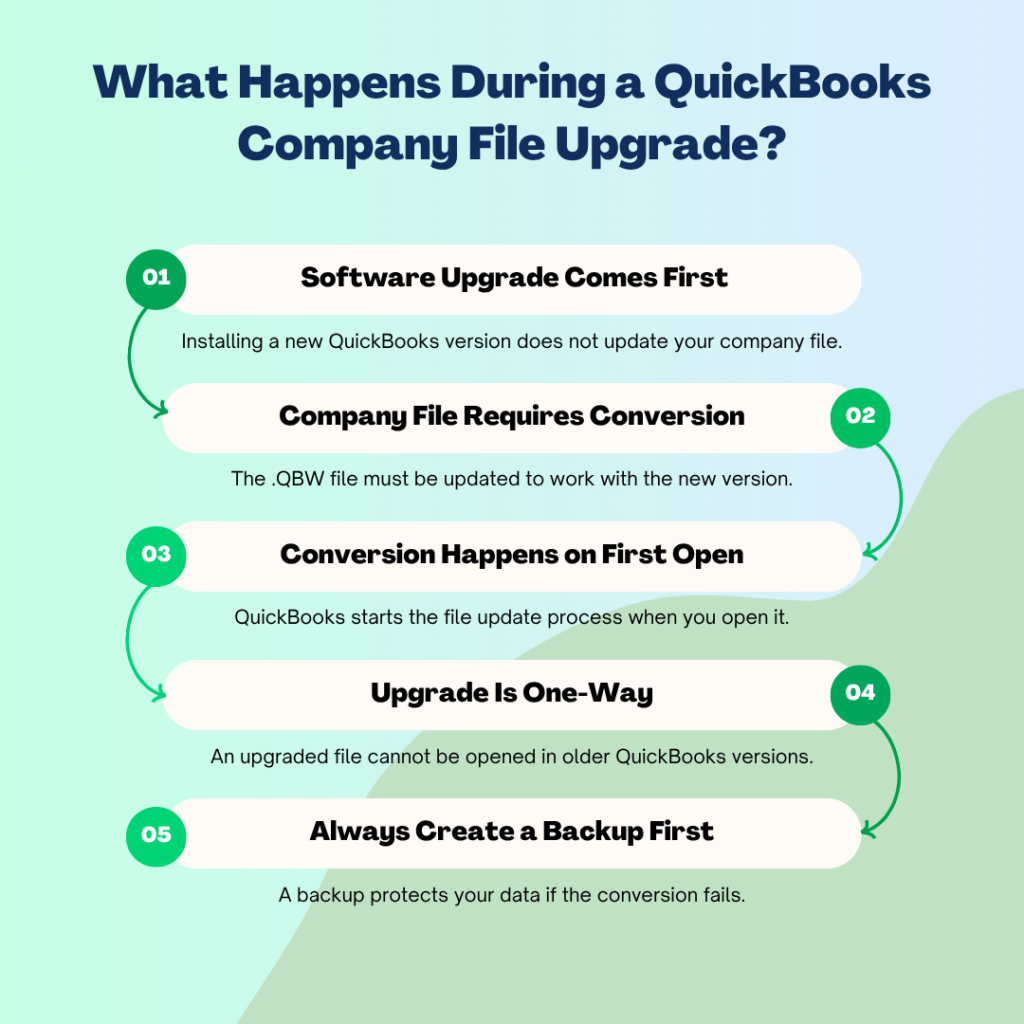
Upgrading QuickBooks Desktop to a new version — for example, moving from QuickBooks 2021 to QuickBooks 2023 — installs new software on the computer but does not automatically update the company file. The company file is the file with a .QBW extension that holds every transaction, account balance, customer record, and payroll entry for the business. The new version of QuickBooks uses a different internal file format from the old version, and the company file must be converted — updated from the old format to the new one — before the new QuickBooks can read and open it.
The conversion happens the first time the company file is opened in the new version, and QuickBooks displays a prompt to confirm the update before proceeding. The most common error at this stage is the message: “This company file needs to be updated. Please ask your QuickBooks Administrator to update the file.” Intuit’s support team confirmed the primary cause of this error: the company file is opened without Windows administrator rights. QuickBooks requires administrator-level access to write the conversion changes to the file, and without it, the conversion cannot complete.
Other causes produce the same or similar errors: the new QuickBooks version is installed on only some computers in a multi-user network, leaving workstations on the old version; the company file is stored on a network drive that blocks write access during conversion; existing data damage in the file prevents the upgrade from finishing; or the QuickBooks installation itself is incomplete and missing components the conversion process needs. This article covers every documented cause and every fix in the correct order, from the simplest to the most thorough.
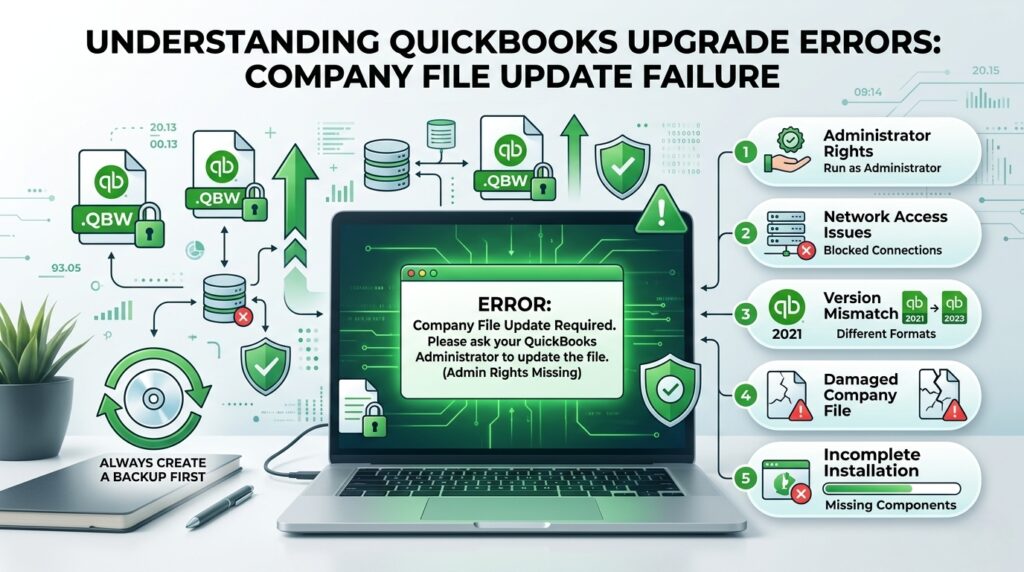
Table of Contents
What Actually Happens When QuickBooks Upgrades a Company File?
The Difference Between Upgrading QuickBooks and Updating the Company File
Upgrading QuickBooks means installing a new version of the software — for example, replacing QuickBooks 2021 with QuickBooks 2023. This upgrade installs new program files on the computer but does not touch the company file at all. The company file remains in its old format, stored in the same folder as before. Intuit’s documentation for the upgrade process confirms this: the company file must be updated separately after the software upgrade is complete. These are two distinct steps, and the error this article covers happens in the second step — when the company file update is attempted.
Updating the company file converts its internal format so the new QuickBooks version can read it. This conversion is a one-way process: once a company file is updated to a new version, it cannot be opened in an older version of QuickBooks. Intuit’s documentation states this directly. This is why creating a full backup of the company file before starting the conversion is essential — the backup preserves the file in its old format, which can be opened in the old QuickBooks version if the conversion fails or if the old version is needed for any reason after the upgrade.
Why QuickBooks Requires Administrator Rights to Convert a Company File
Administrator rights in Windows are a permission level that controls which programs can write to protected folders and modify files. When QuickBooks converts a company file, it rewrites the file’s internal structure — which means it must write changes to the company file on the hard drive. Windows security settings block programs from writing to protected locations unless they are running with administrator rights. The company file folder, by default stored in C:\Users\Public\Documents\Intuit\QuickBooks, is a protected Windows location that requires administrator access to modify.
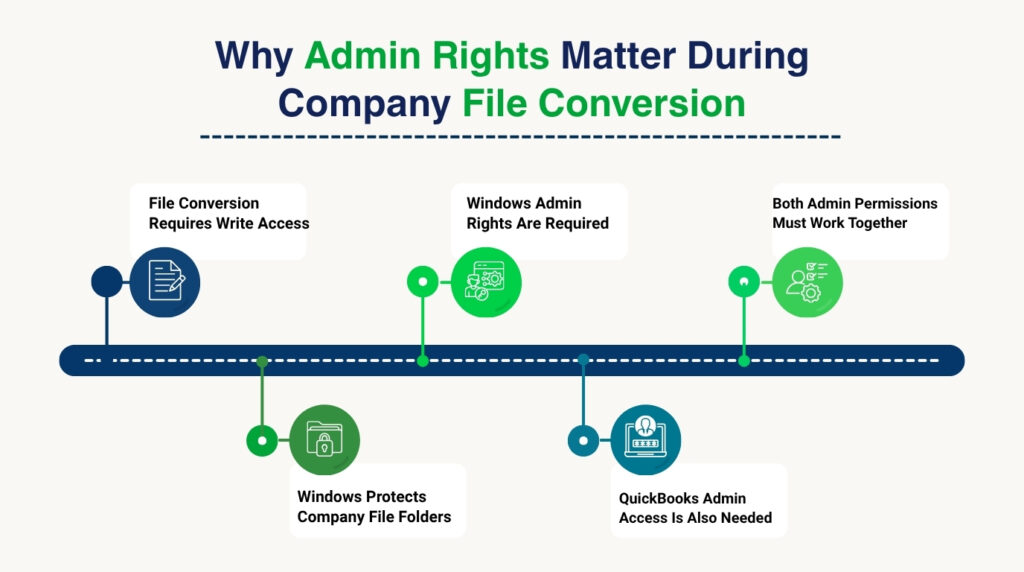
Intuit’s support team confirmed this cause directly for the “This company file needs to be updated” error: “This error message occurs if you’re not logged in as the administrator when opening an older file into a newer QuickBooks version.” There are two separate administrator accounts involved: the QuickBooks administrator (the admin user set up inside QuickBooks itself) and the Windows administrator (the Windows user account that has admin rights on the computer). Both must be in place for the conversion to succeed. A user who is the QuickBooks admin but whose Windows account does not have admin rights will still see this error because Windows blocks the file write even before QuickBooks can attempt the conversion.
Why the Company File Must Be Converted Locally, Not on a Network Drive
A network drive is a storage location on another computer that is shared across the office network, so that multiple people can access the same files from their own computers. QuickBooks company files are often stored on a network drive in multi-user offices. Converting a company file stored on a network drive adds a layer of complexity: QuickBooks must write conversion changes to the file across the network connection, and any interruption in that connection — even a brief one — can stop the conversion mid-way. The partially converted file is then in a state that neither the old nor the new QuickBooks version can open.
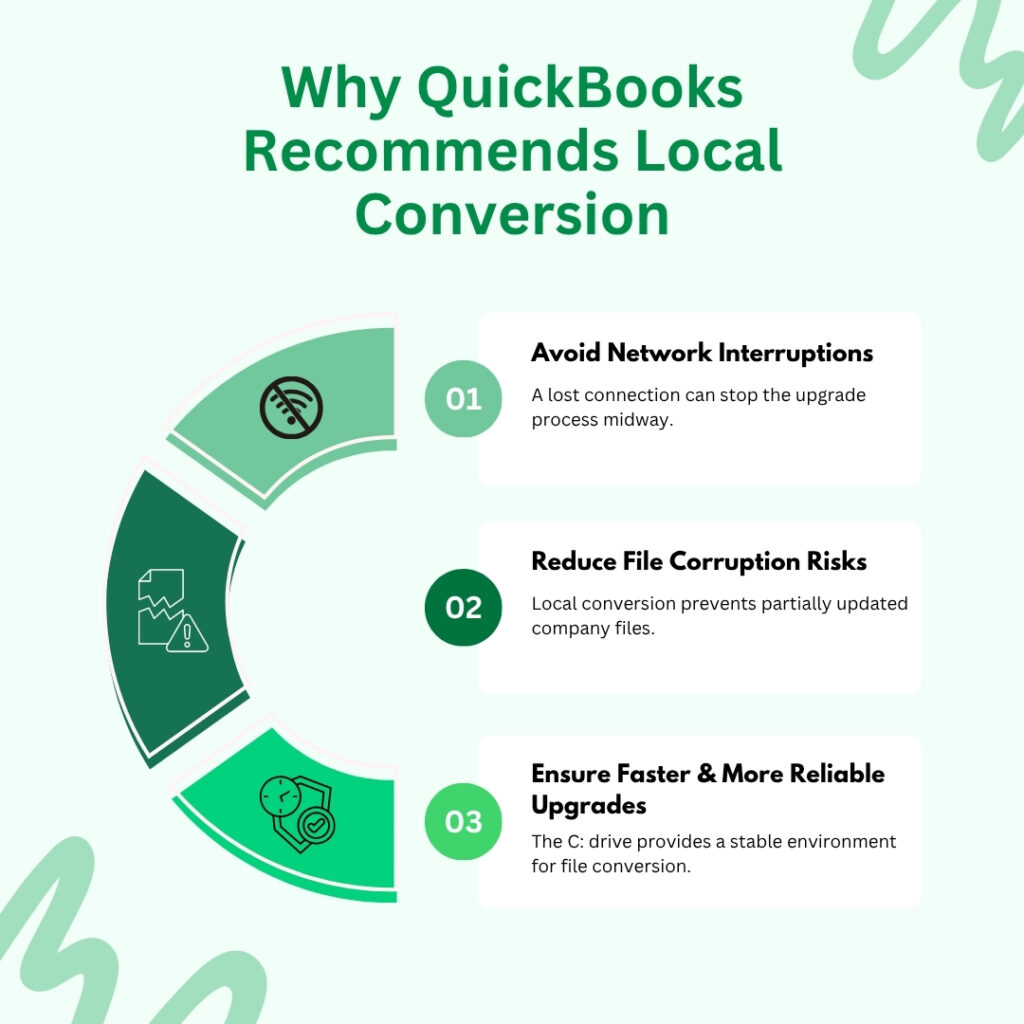
Intuit’s upgrade documentation and documented community guidance both confirm that the company file should be moved to the local computer’s hard drive (the C: drive) before conversion. Converting from a local drive is faster, more reliable, and not subject to network interruptions. After the conversion finishes successfully on the local drive, the converted file can be copied back to the network location for multi-user access. This local-first conversion approach eliminates an entire category of conversion failure that network-based conversion can cause.
Quick Diagnosis: Match the Situation to the Correct QuickBooks Fix
Find the description that matches what is happening before applying any fix. Starting at the correct fix saves time and avoids repeating steps that will not resolve the specific cause.
| What Is Happening | Most Likely Cause | Start With This Fix |
| QuickBooks shows “This company file needs to be updated” immediately after opening the new version | The company file is still in the old version’s format and must be converted to the new version’s format | Fix 1: Open QuickBooks as administrator, go to File > Open or Restore Company, select the file, click Update Now |
| The update screen appears but skips the login screen and shows “You must have an administrator update the company file” | QuickBooks is not running with Windows administrator rights — it cannot write the conversion changes to the file | Fix 1: Close QuickBooks, right-click the QuickBooks icon on the desktop, select Run as administrator, then open the company file |
| The company file opens on the server but workstations show “This file needs to be updated” | The new QuickBooks version was only installed on the server — workstations are still running the old version | Fix 2: Install the new QuickBooks version on every workstation before opening the updated company file on any workstation |
| Company file conversion started but stopped with no error code — just a blank error box | The QuickBooks installation is damaged or a background program is interfering with the conversion process | Fix 3: Run QuickBooks File Doctor, then run the Reboot.bat file to re-register QuickBooks components |
| Conversion completed successfully but the company file still will not open | The company file was stored on a network drive during conversion — network drives can interrupt the conversion process | Fix 4: Copy the company file to the local C: drive, convert it there, then move it back to the network location |
| Opening the sample company file works fine but the real company file fails to open after upgrade | The real company file has data damage that was present before the upgrade and is now preventing conversion | Fix 5: Verify and Rebuild the company file before converting, or run QuickBooks File Doctor |
| Every fix has been tried and the company file still will not open after upgrade | The damage or incompatibility is beyond what the built-in tools can address | Fix 6: Restore the pre-upgrade backup and contact Intuit support |
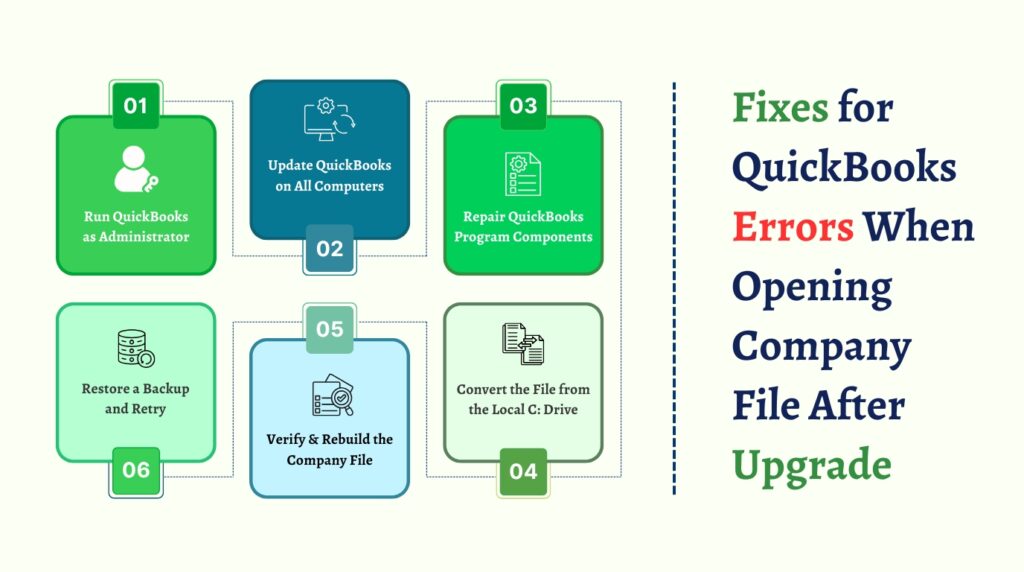
Fixes for QuickBooks Errors When Opening Company File After Upgrade
Fixes for quickbooks errors when opening a company file after upgrade are given below in six points. They are:
- Fix 1: Run QuickBooks as Windows Administrator and Convert the Company File
- Fix 2: Install the New QuickBooks Version on Every Computer Before Updating the Company File
- Fix 3: Run QuickBooks File Doctor and the Reboot.bat File to Repair Program Components
- Fix 4: Move the Company File to the Local C: Drive Before Converting
- Fix 5: Verify and Rebuild the Company File Before Attempting the Upgrade
- Fix 6: Restore the Pre-Upgrade Backup and Retry the Conversion
Fix 1: Run QuickBooks as Windows Administrator and Convert the Company File
Running QuickBooks as a Windows administrator gives the program the access level it needs to write the conversion changes to the company file. The standard way of opening QuickBooks — double-clicking the icon or clicking it from the taskbar — does not always launch it with administrator rights, even when the Windows user account has admin privileges. Right-clicking the QuickBooks icon and selecting “Run as administrator” forces Windows to launch QuickBooks with full write access to all folders and files, including the company file location.
The company file conversion must also be performed by the QuickBooks administrator user — the admin account set up inside QuickBooks, not just the Windows admin. Intuit’s community support team confirmed this requirement for the “This file needs to be updated” error: the user must log in as the QuickBooks admin to perform the company file update. If the QuickBooks admin password is unknown, it must be reset through Intuit’s automated reset tool before the conversion can proceed.
Steps: Close QuickBooks completely. Right-click the QuickBooks Desktop icon on the desktop or in the Start menu. Select Run as administrator from the menu that appears. Click Yes if Windows asks for permission to allow changes. QuickBooks opens to the No Company Open window. Go to File > Open or Restore Company. Select Open a company file and click Next. Browse to the company file location and select it. Click Open. The Update Company File for New Version window appears — read the information displayed, check the box to confirm understanding, and click Update Now. Follow the on-screen backup prompts. QuickBooks will ask to save a backup before converting — choose a new file name and save it. When the conversion completes, QuickBooks opens the company file in the new version.
Fix 2: Install the New QuickBooks Version on Every Computer Before Updating the Company File
A multi-user QuickBooks setup means several computers — each running their own copy of QuickBooks — access the same company file stored on a server. Each computer’s QuickBooks installation must be the same version for this shared access to work. Intuit’s own guidance for multi-user upgrades confirms this: “If you have several QuickBooks users, don’t update the company file to the new software version until you’ve upgraded everyone’s copy of QuickBooks. Otherwise, your colleagues won’t be able to work in the company file until they have the newest version.”
The reason every computer must be updated first is that once the company file is converted to the new version’s format, the old version of QuickBooks cannot open it. Any workstation still running the old version will show an error when it tries to access the updated file. Completing the software upgrade on every computer before converting the company file means all computers can open the file immediately after conversion with no version mismatch errors.
Steps: On each workstation and the server, open QuickBooks. Go to Help > Update QuickBooks Desktop. Click the Update Now tab. Check the Reset Update box and click Get Updates. After the download completes, close and reopen QuickBooks and install the update when prompted. Alternatively, if upgrading to a completely new annual version (e.g., 2021 to 2023), install the new version from the Intuit download or disc on each computer before converting the company file. After all computers are running the new version, proceed with Fix 1 to convert the company file on the server computer with administrator rights. Confirm the file opens on each workstation after conversion.
Fix 3: Run QuickBooks File Doctor and the Reboot.bat File to Repair Program Components
The Reboot.bat file is a small program included in the QuickBooks installation folder that re-registers all QuickBooks components with Windows. When a QuickBooks installation is incomplete — because it was interrupted, or because a Windows update changed a component QuickBooks depends on — the conversion process fails partway through with a blank error box or no error code at all. Running Reboot.bat rebuilds the component registrations that QuickBooks needs to complete the conversion process. The file is located in the QuickBooks program folder and must be run with administrator rights.
QuickBooks File Doctor, available free inside the QuickBooks Tool Hub from Intuit, addresses both company file damage and program installation problems. Intuit’s support documentation lists File Doctor as the correct tool when the company file fails to open: “If the error happens when you open your file as the admin user, run the QuickBooks File Doctor.” Running File Doctor before attempting the conversion again confirms whether the file itself has damage that needs to be repaired before the upgrade can succeed.
Steps — Run File Doctor: Download and install the QuickBooks Tool Hub from Intuit’s official support page. Open the Tool Hub. Click Company File Issues. Click Run QuickBooks File Doctor. Select the company file and choose Check your file and network. Enter the QuickBooks admin password and click Next. Wait for the scan and repair to complete, then retry the company file conversion.
Steps — Run Reboot.bat: Close QuickBooks completely. Open File Explorer. Navigate to C:\Program Files (x86)\Intuit\QuickBooks [Year] — replace [Year] with the version number of the new QuickBooks installation. Find the file named Reboot.bat in that folder. Right-click Reboot.bat and select Run as administrator. A black Command Prompt window opens and runs the registration process automatically — wait for it to finish and close on its own. After it closes, restart the computer. Open QuickBooks using Run as administrator and retry the company file conversion.
Fix 4: Move the Company File to the Local C: Drive Before Converting
Moving the company file from a network drive to the local C: drive for conversion eliminates network interference as a cause of conversion failure. The local C: drive on the computer running QuickBooks is directly connected to the processor and RAM — read and write operations happen much faster and without any network dependency. The conversion process makes intensive read and write changes to the company file, and having the file on the local drive means every one of those changes completes without any network delay or interruption risk.
Steps: Close QuickBooks on the server and all workstations. Open File Explorer on the server — the computer that stores the company file. Navigate to the folder that holds the company file (the file with a .QBW extension). Right-click the company file and select Copy. Navigate to the Desktop or the C:\Users\Public\Documents\Intuit\QuickBooks\Company Files folder on the server. Right-click and select Paste to place a copy of the company file on the local drive. Open QuickBooks using Run as administrator. Go to File > Open or Restore Company. Browse to the local copy of the company file and open it. Complete the conversion by following the on-screen prompts. After conversion completes successfully, copy the converted company file back to the network location. Delete the local copy from the C: drive.
Note: During the conversion, every other user must remain completely logged out of QuickBooks and must not attempt to access the company file from the network location. The conversion changes the file format of the company file, and any simultaneous access during this process will interrupt the conversion and leave the file in an unusable state.
Fix 5: Verify and Rebuild the Company File Before Attempting the Upgrade
A company file that contains data damage — broken links between transactions, inconsistent account balances, damaged estimates or purchase orders — may fail the upgrade conversion because the conversion process reads every record in the file and rewrites it in the new format. A damaged record stops the conversion when the conversion process cannot read it correctly. Running Verify Data before the upgrade identifies any damage, and Rebuild Data repairs it. Starting the upgrade from a verified, clean file eliminates this category of conversion failure entirely.
Intuit’s upgrade documentation confirms this sequence: the company file should be verified and rebuilt before conversion. The Verify Data tool is found at File > Utilities > Verify Data. The Rebuild Data tool is found at File > Utilities > Rebuild Data. Both must be run in the old version of QuickBooks — before the new version is installed — because the old version is what can currently open the company file. Running Verify and Rebuild in the old version cleans the file before the upgrade, so the conversion starts from a file the new version’s conversion process can read without encountering damaged records.
Steps: Before installing the new QuickBooks version, open the company file in the current (old) version of QuickBooks. Go to File > Utilities > Verify Data. If Verify reports “Your data has lost integrity”, go to File > Utilities > Rebuild Data. Create the required backup when prompted. After the rebuild completes, run Verify Data again to confirm it now reports “QuickBooks detected no problems with your data.” Once the file is clean, create a full backup through File > Back Up Company > Create Local Backup. Install the new QuickBooks version. Open the verified, clean company file in the new version and complete the conversion.
Fix 6: Restore the Pre-Upgrade Backup and Retry the Conversion
A pre-upgrade backup is a complete copy of the company file saved in the old version’s format before the new QuickBooks version was installed. Intuit’s upgrade documentation makes a backup a required step before any company file conversion: “QuickBooks automatically creates a backup of your existing company file” during the upgrade prompt, and the user can choose where to save it. If the conversion has failed and left the company file in an unusable state, restoring this backup returns the file to exactly how it was before the conversion was attempted — and from that clean starting point, the conversion can be tried again using the correct process.
Steps: Open QuickBooks Desktop using Run as administrator. Go to File > Open or Restore Company. Select Restore a backup copy and click Next. Choose Local Backup and browse to the backup file saved before the upgrade (the file ending in .QBB). In the Save Company File As dialog box, save the restored file with a new name and in a local folder — do not overwrite the current (damaged) file. Open the restored file. Run Verify Data to confirm the restored backup is clean. Copy the restored file to the server’s local drive. Retry the conversion following Fix 1, with QuickBooks running as administrator and all other users logged out.
All QuickBooks Fixes at a Glance
| Fix | What It Resolves | Time |
| Fix 1: Run QuickBooks as administrator and convert the company file | Resolves the most common cause — missing Windows admin rights preventing the file format update | 10–15 min |
| Fix 2: Install the new QuickBooks version on all computers before converting | Ensures every workstation can open the converted file and no version mismatch errors appear | 20–60 min |
| Fix 3: Run QuickBooks File Doctor and Reboot.bat | Repairs damaged QuickBooks program components that block the conversion process | 15–20 min |
| Fix 4: Move the company file to the local C: drive for conversion | Eliminates network drive interference that stops the conversion process mid-way | 10–15 min |
| Fix 5: Verify and Rebuild the company file before converting | Clears existing data damage in the company file that prevents the upgrade from completing | 20–40 min |
| Fix 6: Restore the pre-upgrade backup | Provides a clean starting point when all other fixes have not resolved the conversion failure | 20–40 min |
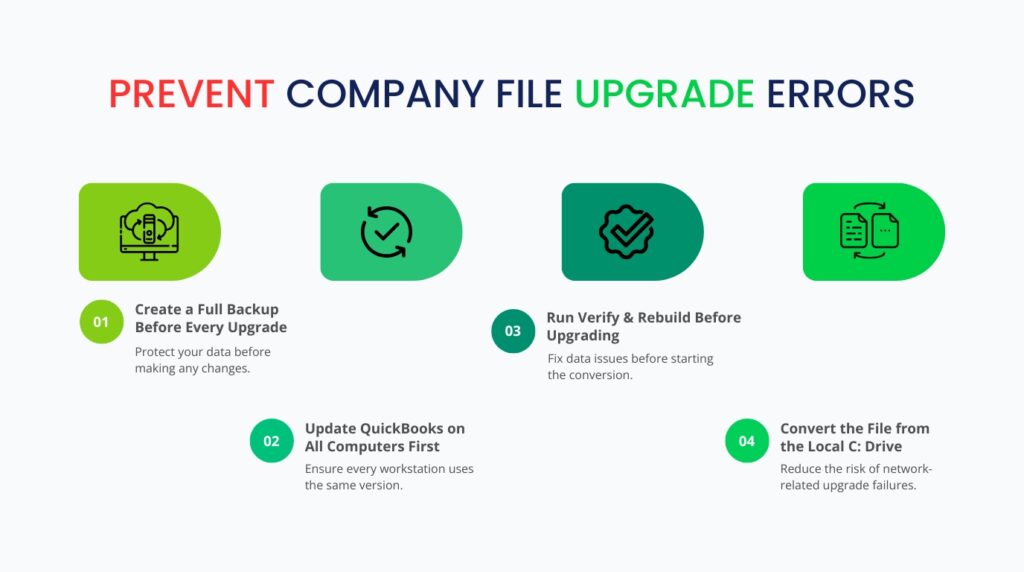
Prevention: Avoid Errors on Every Future QuickBooks Upgrade
- Create a Full Backup Immediately Before Starting Any Upgrade
A backup taken immediately before an upgrade is the most important safety step in the entire upgrade process. The backup preserves the company file in its current format — the format the old QuickBooks version can open — and makes it possible to fully reverse the upgrade if anything goes wrong. Intuit’s upgrade documentation confirms that QuickBooks creates an automatic backup during the conversion prompt, but a manual backup done beforehand provides an additional layer of protection because the user controls where it is saved and can confirm it completed successfully. Save the pre-upgrade backup to an external drive or a separate folder with the date in the file name — for example, “CompanyFile_PreUpgrade_2024_01_15.QBB” — so it is immediately identifiable if a restore is needed.
- Upgrade the QuickBooks Software on Every Computer Before Converting the Company File
In a multi-user office, the company file conversion must be the last step — not the first. Installing the new QuickBooks version on the server and immediately converting the company file leaves all workstations on the old version, which can no longer open the converted file. The correct sequence is: install the new QuickBooks version on every workstation and the server first, confirm that each computer opens QuickBooks correctly in the new version, and then convert the company file once from the server computer using administrator rights. This sequence ensures every computer is ready to use the converted file the moment conversion completes.
- Verify and Rebuild the Company File in the Current Version Before Every Upgrade
Running Verify Data and Rebuild Data in the current QuickBooks version, before installing the new version, clears data damage from the company file before the conversion process has to read through it. A damaged record in the company file is manageable while working in the current version but becomes a conversion-blocking problem when the new version attempts to rewrite that record in the new format. Setting a rule to verify and rebuild the company file in the week before every planned upgrade takes less than 30 minutes and eliminates one of the most common causes of upgrade-related conversion failures. The clean bill of health from a successful Verify — “QuickBooks detected no problems with your data” — confirms the file is ready for conversion.
- Keep the Company File Stored on the Local C: Drive During the Conversion Process
Storing the company file on a network drive is correct for day-to-day multi-user access but creates risk during the one-time conversion process. The conversion makes intensive write changes to the file over a period of several minutes, and any interruption in the network connection during that window can leave the file partially converted and unopenable. Making it a standard practice to copy the company file to the server’s local C: drive before every upgrade conversion — and copying it back to the network location after conversion succeeds — eliminates network interference from the upgrade process permanently. This local conversion practice takes an extra 10 minutes but removes one of the most difficult-to-diagnose causes of upgrade failure.
Conclusion
The most common reason QuickBooks fails to open a company file after an upgrade is that the conversion was attempted without Windows administrator rights. QuickBooks requires administrator-level access to rewrite the company file into the new version’s format, and without it, the conversion stops immediately and shows the “This company file needs to be updated” message. The fix is to close QuickBooks, right-click the QuickBooks icon, select Run as administrator, and then open the company file — which gives QuickBooks the write access it needs to complete the conversion. The QuickBooks administrator user must be the one to open and convert the file.
In multi-user offices, the upgrade must be installed on every computer before the company file is converted on any computer. Once the company file is converted, the old QuickBooks version cannot open it — any workstation still running the old version will be locked out. Intuit’s own guidance confirms this sequence: upgrade all computers first, then convert the company file once, from the server, with administrator rights. The company file should be copied to the server’s local C: drive for the conversion to eliminate network interference, then copied back to the network location after conversion succeeds.
Verify and Rebuild Data, run in the old QuickBooks version before the upgrade begins, clean the company file of any existing data damage that would block the new version’s conversion process. QuickBooks File Doctor and the Reboot.bat file address damaged program components that prevent conversion from completing. A pre-upgrade backup — saved before the new software is installed — makes it possible to restore the file to its pre-conversion state and retry with the correct process if any conversion attempt fails. Following this sequence: backup → verify and rebuild → upgrade all computers → convert locally as administrator prevents every documented cause of company file errors after a QuickBooks upgrade.
Frequently Asked Questions
1. The conversion completed and QuickBooks said it was successful, but now the company file will not open at all. What happened?
A conversion that reports success but leaves the file unopenable usually means the file was stored on a network drive during conversion and the write process was interrupted partway through. The conversion program reported success based on what it completed, but the file on the network drive did not receive all the changes because the connection dropped at some point.
The fix is to restore the pre-upgrade backup — the backup saved before the conversion was attempted — to the server’s local C: drive, and then retry the conversion from there. Run QuickBooks as administrator, open the restored backup from the local C: drive, complete the conversion, and then copy the converted file back to the network location after the conversion finishes cleanly.
2. The “This company file needs to be updated” message appears even though QuickBooks is already running as administrator. Why does the error persist?
Running QuickBooks as a Windows administrator is one requirement, but the QuickBooks admin user must also be the one opening the file. If QuickBooks opens as a Windows administrator but the user logging into QuickBooks is not the QuickBooks admin user — or if the QuickBooks admin password is incorrect — the error appears because QuickBooks blocks non-admin users from performing the conversion.
Log in to QuickBooks using the QuickBooks admin account specifically. If the QuickBooks admin password is unknown, use Intuit’s automated admin password reset tool, available on Intuit’s support page, to reset it before attempting the conversion again.
3. One computer in the office successfully converted the company file but all other workstations now show an error when opening it. What went wrong?
The company file was converted before all workstations were upgraded to the new QuickBooks version. Once the file is converted to the new version’s format, only the new QuickBooks version can open it. Any workstation still running the old QuickBooks version sees the file as an incompatible format and produces an error. Install the new QuickBooks version on each workstation that cannot open the file.
After the new version is installed on a workstation, that workstation can open the converted company file without any additional steps — no conversion is needed on each workstation because the file was already converted once on the server.
4. The company file opens fine on the server after conversion but is very slow on workstations. Is this related to the upgrade?
Slow performance on workstations after an upgrade is usually caused by the new QuickBooks version performing an initial indexing pass on the company file — rebuilding its internal search index in the new format on each workstation the first time the file is opened there. This initial index rebuild can take several minutes and makes QuickBooks appear slow or unresponsive on first use after conversion.
The slowness resolves itself after the first successful open on each workstation. If the slowness continues beyond the first session, check the workstation’s QuickBooks version through Help > About QuickBooks to confirm it is the same version as the converted company file, and check the company file size by pressing F2 inside QuickBooks — a large file over 500 MB will perform slowly on workstations with less than 8 GB of RAM.
5. The upgrade fails with a blank error box showing no error code. How is a blank error diagnosed and fixed?
A blank error box with no error code during the conversion is a documented pattern that points to a damaged QuickBooks installation rather than a problem with the company file itself. Intuit’s community team confirmed this: a blank error code during conversion suggests the QuickBooks program components are not registering correctly with Windows. The fix is to run the Reboot.bat file from the QuickBooks program folder (C:\Program Files (x86)\Intuit\QuickBooks [Year]\Reboot.bat) with administrator rights — this re-registers all QuickBooks components with Windows. After Reboot.bat completes, restart the computer and retry the conversion. If the blank error reappears, run the QuickBooks Tool Hub’s Program Problems tool through the Tool Hub > Program Problems > Quick Fix my Program, which applies the same component repair steps through an automated interface.

Anusmita is a seasoned content writer who brings perspective to words. As a writer, she enriches her work with a journalistic aptitude, utilising her training in Mass Communication and Journalism. She loves to travel and explore, which imparts a greater sense of understanding, maturity, and experience that are reflected in her content.
Beyond her professional work, Anusmita enjoys painting, singing, dancing, and spending time planting. She is also a self-proclaimed foodie who loves exploring different cuisines, an interest that further adds to her curiosity and perspective as a writer.
Leave a Reply